- What Is Ping?
- How to Do a Ping Test on a Windows PC
- How to Read Your Ping Test Results
- How to Test Your Internet Connection
- How to Perform a Continuous Ping Test
- Common Ping Error Messages
- How to Troubleshoot a Ping Problem
- Important: Ping Does Not Test Internet Speed
- Important: A Failed Ping Does Not Always Mean the Server Is Down
- Summary
If you want to test your computer’s network connectivity or troubleshoot a connection problem, you can perform a Ping test.
A Ping test helps determine whether a device, server, IP address, or domain name is reachable over an IP network. It can also measure the Round-Trip Time (RTT) between your computer and the target.
This can help you identify whether a connectivity problem may be related to your local network, Internet connection, ISP, routing, or a particular server or website.
What Is Ping? #
Ping is a computer network administration utility used to test the reachability of a host on an Internet Protocol (IP) network and measure the Round-Trip Time (RTT) for messages.
Ping works by sending Internet Control Message Protocol (ICMP) Echo Request packets to a target host and waiting for an ICMP Echo Reply.
ICMP Packets #
Ping uses ICMP to send an Echo Request to the target device.
If the target is reachable and allows ICMP requests, it sends an Echo Reply back to your computer.
The basic process is:
Your Computer → ICMP Echo Request → Target Host
Your Computer ← ICMP Echo Reply ← Target Host
Round-Trip Time (RTT) #
Round-Trip Time (RTT) measures how long it takes for the request to travel from your computer to the destination and for the response to return.
RTT is normally displayed in milliseconds (ms).
For example:
Reply from 8.8.8.8: bytes=32 time=20ms TTL=117In this example, 20ms is the approximate Round-Trip Time for that Ping request.
A lower RTT generally indicates lower network latency, while a higher RTT indicates greater delay.
How to Do a Ping Test on a Windows PC #
You can perform a Ping test using Command Prompt (CMD) in Windows.
Step 1: Open Command Prompt #
Open Windows Search and type:
CMDSelect Command Prompt from the search results.
Alternatively, you can press:
Windows + R
Then type:
cmdand press Enter.

Step 2: Enter the Ping Command #
In the Command Prompt window, type:
pingfollowed by a space and the IP address or domain name that you want to test.
For example:
ping <IP address>or:
ping <domain name>Then press Enter.

Step 3: Check the Ping Results #
Windows will send several ICMP Echo Request packets and display the responses received from the target.
A typical result may look like:
Pinging 192.168.1.1 with 32 bytes of data:

Reply from 192.168.1.1: bytes=32 time=2ms TTL=64
Reply from 192.168.1.1: bytes=32 time=1ms TTL=64
Reply from 192.168.1.1: bytes=32 time=2ms TTL=64
Reply from 192.168.1.1: bytes=32 time=1ms TTL=64

Ping statistics for 192.168.1.1:
    Packets: Sent = 4, Received = 4, Lost = 0 (0% loss)

Approximate round trip times in milli-seconds:
    Minimum = 1ms, Maximum = 2ms, Average = 1ms
How to Read Your Ping Test Results #
When you perform a standard Ping test on Windows, you will normally see multiple Ping responses followed by a summary.
The results show several important pieces of information.
Ping Time #
The time= value represents the approximate Round-Trip Time (RTT).
For example:
time=20msmeans that the round trip took approximately 20 milliseconds.
Packets Sent #
This shows how many Ping requests were sent.
Packets Received #
This shows how many responses were received from the target.
Packet Loss #
Packet loss occurs when a Ping request does not receive a response.
For example:
Packets: Sent = 4, Received = 3, Lost = 1 (25% loss)This means one of the four Ping requests did not receive a response.
Packet loss can indicate network instability, congestion, routing problems, wireless interference, firewall filtering, or other network conditions.
Minimum, Maximum and Average #
Windows also reports:
- Minimum – Fastest response time
- Maximum – Slowest response time
- Average – Average response time
If one response is significantly higher than the others, it may indicate temporary network latency or congestion.
How to Test Your Internet Connection #
If you are troubleshooting an Internet connection, you can test a known public IP address rather than testing only a particular website.
For example:
ping 8.8.8.8This tests whether your computer can receive Ping responses from Google’s public DNS server.
If this Ping succeeds but a particular website does not respond to Ping, the issue may be specific to that destination or its network configuration.
However, remember that some servers and networks block ICMP traffic. Therefore, a failed Ping does not necessarily mean that the website or server is offline.
How to Perform a Continuous Ping Test #
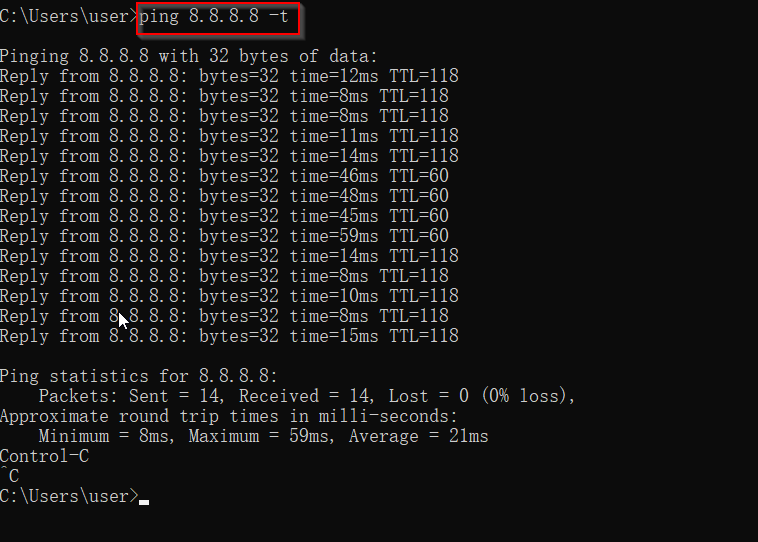
If you want to monitor a connection continuously, you can use the -t option.
For example:
ping 8.8.8.8 -tWindows will continue sending Ping requests until you stop the test.
This can be useful when checking whether a connection is intermittently dropping or experiencing occasional high latency.
To stop the continuous Ping test, press:
Ctrl + C
Windows will then display a summary of the Ping results.
Common Ping Error Messages #
The following are some common messages you may see when a Ping test does not receive the expected response.
Request Timed Out #
Request timed out.This means that no Ping response was received within the applicable timeout period.
Possible causes include:
- Network congestion
- Firewall rules blocking ICMP
- Network connection problems
- Routing problems
- An unavailable or unreachable host
- The target device being configured not to respond to Ping
A timeout does not necessarily mean that the target device is offline.
Unknown Host #
Ping request could not find host ...This generally means that Windows could not resolve the hostname you entered.
Check that:
- The hostname or domain name is entered correctly.
- DNS is working correctly.
- Your network connection is functioning.
You can also test the target using its IP address if one is available.
TTL Expired in Transit #
You may see an error indicating that the TTL (Time To Live) expired in transit.
TTL limits how many network hops a packet can make before it is discarded.
This type of error can occur when packets travel through too many network hops, which may indicate a routing problem or routing loop.
General Failure #
General failure.This may indicate a problem with the local computer’s network configuration or network adapter.
Possible causes include:
- TCP/IP configuration problems
- Network adapter problems
- Driver issues
- Firewall or security software
- Local network configuration issues
Destination Host Unreachable #
You may see:
Destination host unreachable.This generally indicates that your computer or another network device cannot find a route to the destination.
For example:
Reply from 192.168.1.10: Destination host unreachable.This can indicate a routing or local network problem.
How to Troubleshoot a Ping Problem #
If your Ping test fails, try testing different destinations.
For example, you can test your local router:
ping 192.168.1.1Then test a public IP address:
ping 8.8.8.8Then test a domain name:
ping webstation.myComparing the results can help narrow down where the problem may be occurring.
For example:
| Test | Possible Purpose |
|---|---|
ping 192.168.1.1 | Test local network/router connectivity |
ping 8.8.8.8 | Test connectivity to a public IP |
ping webstation.my | Test hostname resolution and destination connectivity |
These tests do not identify every possible network problem, but they can provide useful information for further troubleshooting.
Important: Ping Does Not Test Internet Speed #
Ping measures network latency, not Internet bandwidth.
A Ping test tells you approximately how long it takes for a request and response to travel between two hosts.
An Internet speed test measures:
- Download speed
- Upload speed
- Latency
- Sometimes packet loss and other connection characteristics
Therefore, a fast Internet connection can still have a high Ping time, and a low Ping time does not necessarily mean that your Internet connection has high download or upload speed.
Important: A Failed Ping Does Not Always Mean the Server Is Down #
Ping relies on ICMP.
Some servers, firewalls, routers, hosting providers, and security systems may block or ignore ICMP requests.
As a result:
Ping fails ≠ The website is definitely offline
A server may block Ping while its website or other services continue to work normally.
Likewise, a successful Ping only confirms that the target responded to the ICMP request. It does not confirm that a specific website, application, port, or service is functioning correctly.
Additional troubleshooting tools may be required to investigate a specific service.
Summary #
A Ping test is a simple network diagnostic method that can help you check:
- Host reachability
- Network connectivity
- Round-Trip Time (RTT)
- Network latency
- Packet loss
- Possible routing problems
On Windows, you can perform a Ping test using:
ping <IP address>or:
ping <domain name>For continuous testing:
ping <IP address> -tPing is one of the basic tools that can be used when troubleshooting network connectivity problems.
Credit By : Webstation


