Question : When I try to a save an invoice for a debtor that has violated credit limit, error prompted: Unable to connect to server or Unable to connect to server: Start server before connecting clients. Why?
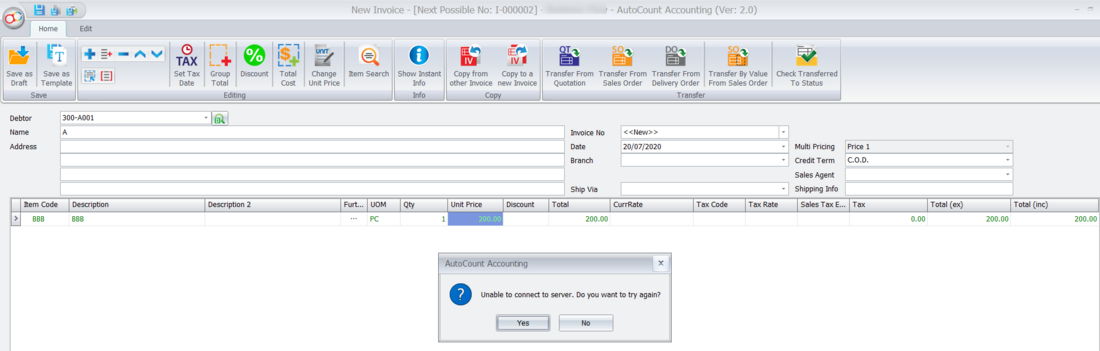
Unable to connect to server: Start server before connecting clients
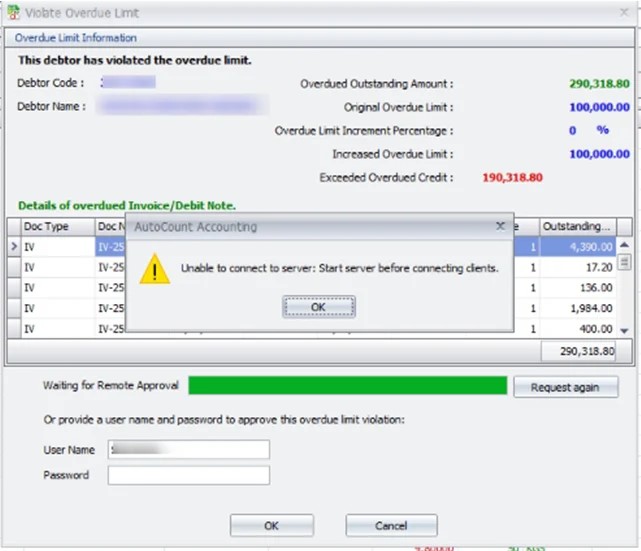
Possible Reason:
You have enabled Remote Credit Control module. Suspect the violated credit limit notification message size may be larger than the AutoCount Server Setting of 64KB.
Solution (1): #
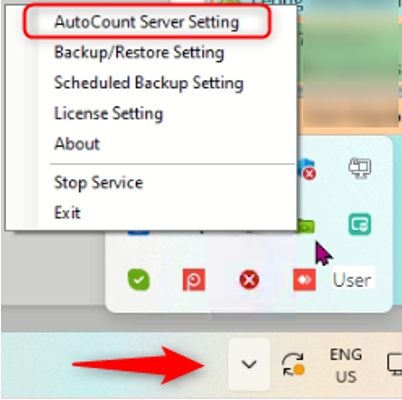
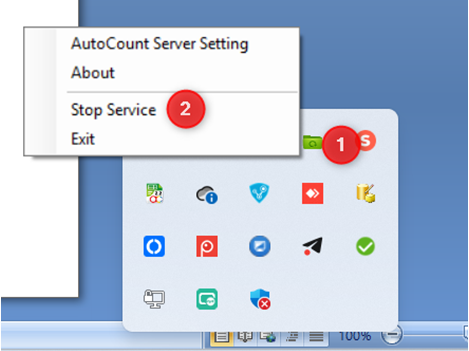
1) Locate AutoCount Server Monitor – a green camera icon at the task bar > right click to select AutoCount Server Setting.
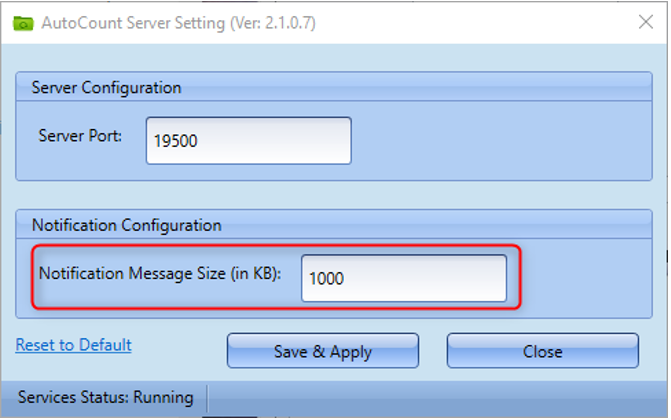
2) Try to increase the Notification Message Size (in KB). May put 1000 or above.
3) Try to save the Invoice again, remote credit control request shall be sent to the approver as it supposed to.
Solution (2): #
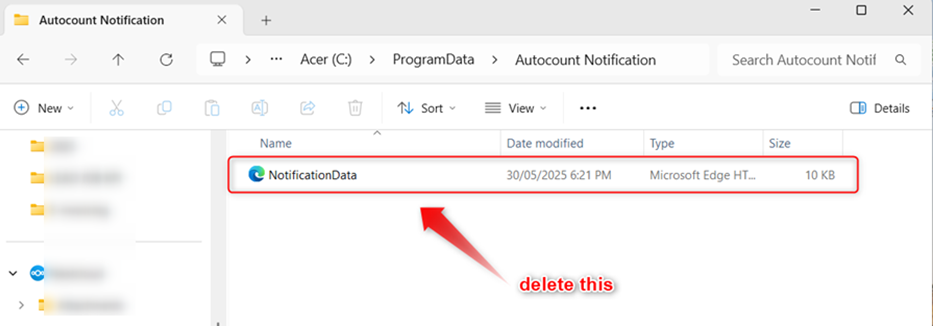
Stop the AutoCount Server Service, delete the files inside C:\ProgramData\AutoCount Notification, then restart the AutoCount Server Service.
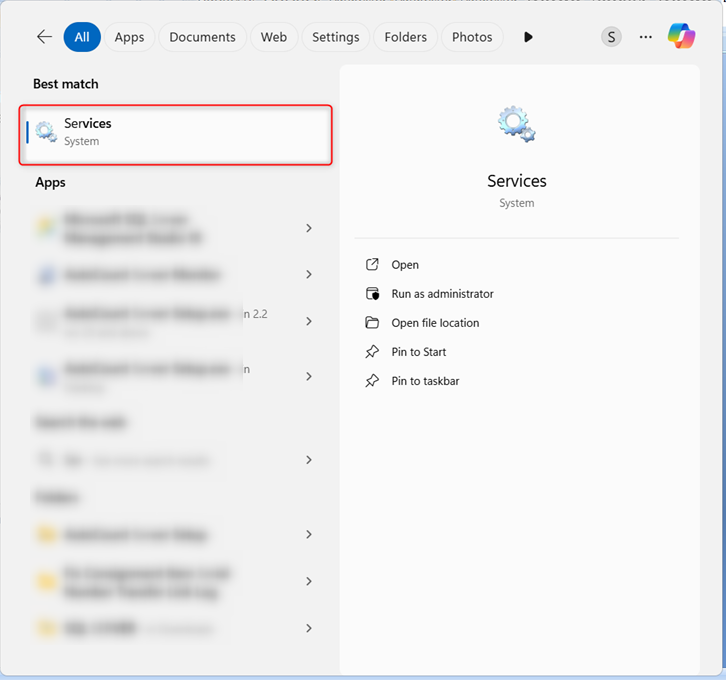
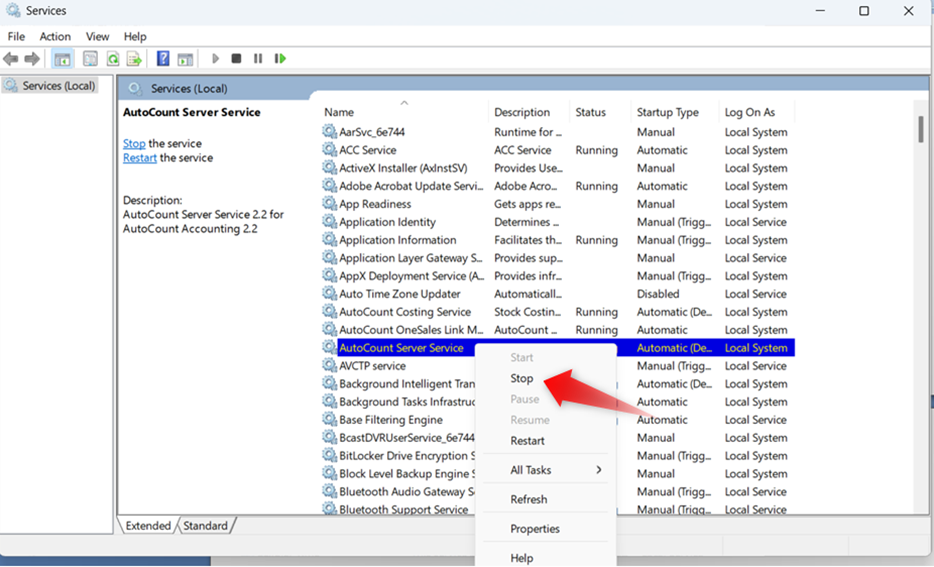
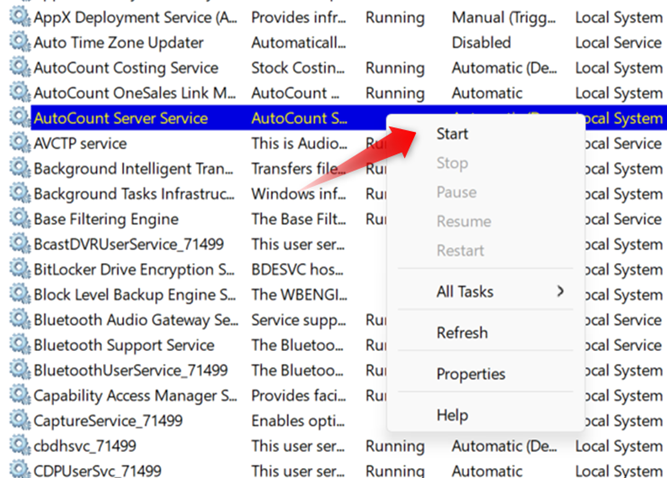
1) Right click on the AutoCount Server and select Stop Service. Alternatively, you can open the Services app from your PC’s search bar, look for AutoCount Server Service right click on it, and select Stop.
2) Go to C:\ProgramData\AutoCount Notification and delete the file named NotificationData.
3) Start back AutoCount Server Service.
Credit By : Webstation


