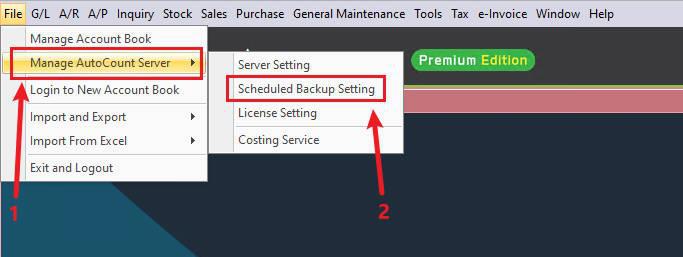
Step 1: Go to File -> Manage AutoCount Server -> Scheduled Backup Setting.
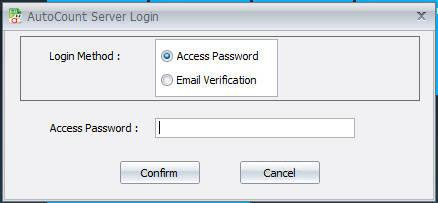
Step 2: Enter Access Password, then click on Confirm.
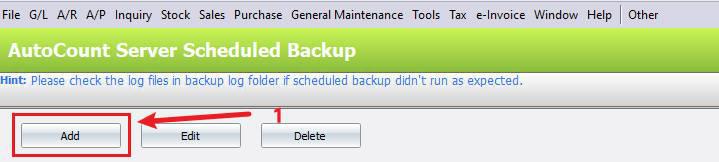
Step 3: Click on Add button.
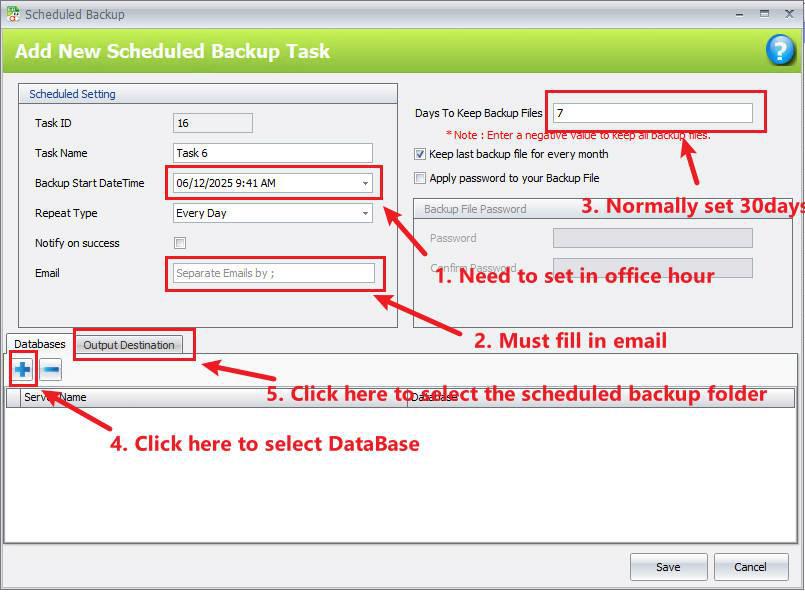
Step 4:
- Backup Time is recommended set on every day 10 a.m. or 5 p.m.
- Must fill in the Email Address.
- The “Days to keep backup files” is normally as 30 days.
- Tick on Keep last backup file for every month
- Click on the “+” symbol to add the database.
- Click on “Output Destination” to select the backup folder location.
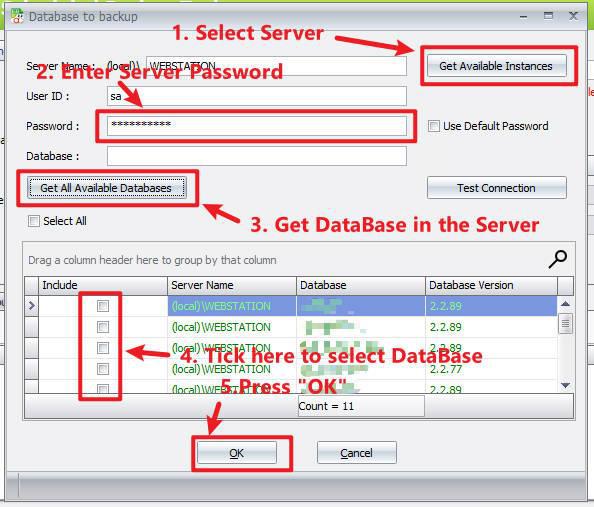
Step 5: After clicking on “+” symbol in the Databases section
- Select the SQL Server
- Enter SQL Server Password
- Get all the DataBase in the SQL Server
- Tick on the desired DataBase
- Press “OK” to save the DataBase
Step 6: After click on the Output Destination section
- Click on “+” symbol to add the Folder Destination
- Must Select the folder location
- Recommended Folder name “AutoCount Scheduled Backup”
- Press “OK” to Save.

Credit By : Webstation


